Planes, frames and placement
Where things go. A plane is a flat surface without end, given by a point and the direction it faces; a frame is a place to build from, a point with its own three axes. This guide covers the three main planes XY, XZ and YZ (and which way each faces), planes of every other kind (through points, on a face, halfway between two faces, moved off another), frames to build on a face, placing parts on faces and next to each other, axes, sketching on a plane, and the planes shown in the 3D view with the menus that write them.
The main planes
Everything in hackerscad is built on XY, Z up, round the origin (the point 0, 0, 0): a box stands on z = 0, a profile lies in XY. Planes and frames say where that XY is somewhere else. A plane's normal is the direction it faces, square to it.
| Plane | Normal | Faces | x and y of a sketch on it |
|---|---|---|---|
XY |
+Z | up: the Top view | x along X, y along Y |
XZ |
−Y | the front: the Front view | x along X, y up Z |
YZ |
+X | the right: the Right view | x along Y, y up Z |
Each faces the way its view looks at it, so a sketch or a profile on it reads as that view shows it: x to the right, y up. Note that XZ faces the front (−Y), not +Y: what is extruded from it with a positive height comes towards you in the Front view, with a negative height goes back.
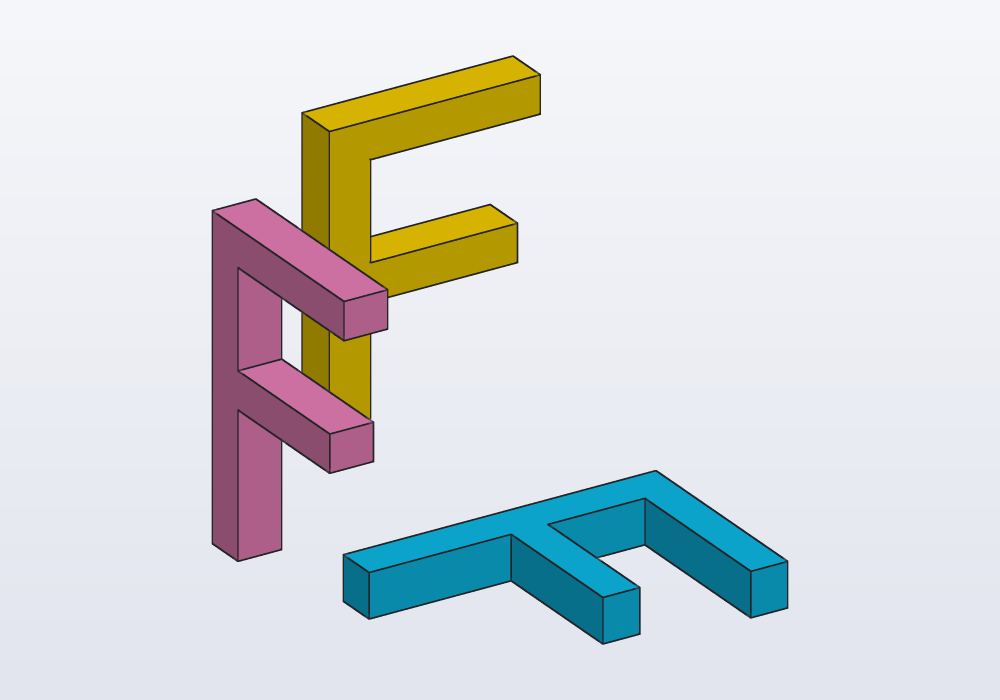
// an F on each main plane, 2 mm thick along its normal:
// each reads as the Top, Front and Right views show it

Solid letter() => text("F", size: 20.mm)
    .move(x: 4.mm, y: 4.mm)
    .extrude(2.mm);

@part("Sky Pop")
Solid onXY() => letter().placeOn(XY);

@part("Pink Pop")
Solid onXZ() => letter().placeOn(XZ);

@part("gold")
Solid onYZ() => letter().placeOn(YZ);
Making planes
Planes cut, split and mirror solids, and carry sketches.
| Form | The plane |
|---|---|
plane(origin: vec(0, 0, 10), normal: Z) |
through a point, square to a direction |
plane(p1, p2, p3) |
through three points; the normal by the right-hand rule, p1 → p2 → p3 |
plane(axis, point) |
containing a line and a point |
body.plane(faces.top) |
the plane of a flat face, its normal outwards |
body.plane(faces.top, faces.bottom) |
halfway between two parallel faces (the midplane), with the first one's normal |
p.offset(5.mm) |
moved along its normal (negative: the other way) |
p.flip |
the same plane, its normal reversed |
A plane has origin and normal. The midplane follows the part: when the part grows, the plane stays in the middle.
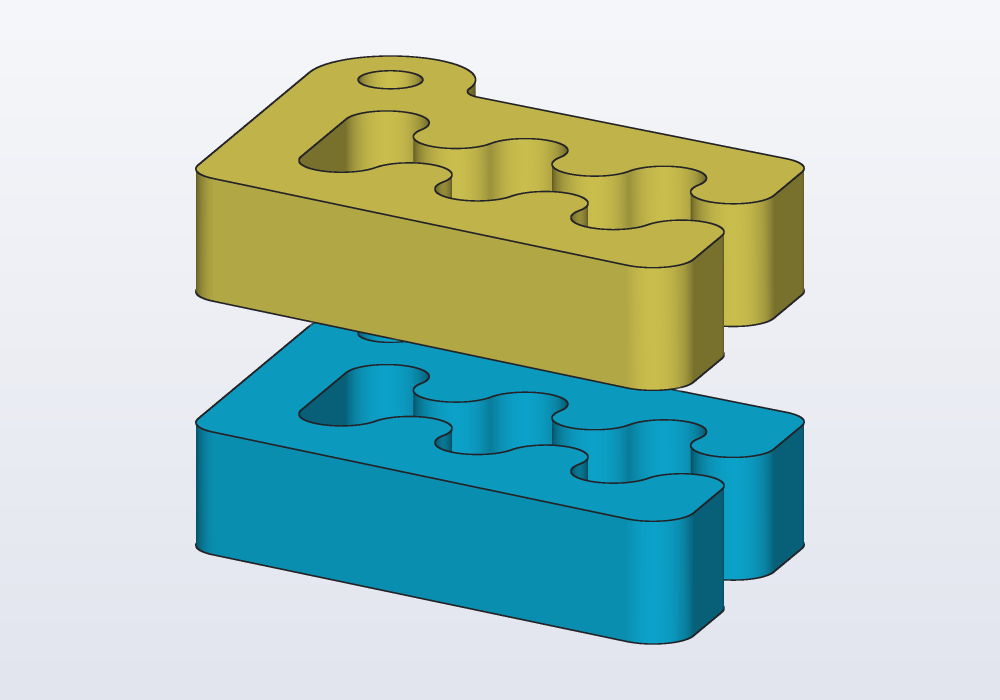
// Carlo cut halfway through its height, the halves
// pushed apart: a plane between two faces

import std;

immutable middle = carlo()
    .plane(faces.top, faces.bottom);

@parts(varied: true)
Solid[] halves() => carlo()
    .split(middle)
    .push(from: middle, by: 4.mm);

unittest
{
    assert(middle.origin.z == 7.5.mm);
    assert(middle.normal == Z);
}
What takes a plane: split and halves (cutting), mirror(plane), section(plane) (the cut as a profile), projection(plane) (the shadow), push(from: plane), placeOn(plane), sketch(plane), and cut/extrude with on: plane.
Frames
A frame is an origin with three axes: where XY goes when you build somewhere else. body.frame(face) has its origin at the face's centre and Z along the outward normal. On a flat face looking up or down, X is the global X; on a wall (any face that is not level), X is horizontal and to the right seen from outside, and Y goes up, on every side: a text reads and a teardrop points up whichever wall it is on.
| Frame | What it is |
|---|---|
body.frame(faces.top) |
on a face; origin: vec(…) another point (projected on the face), x: Y another X |
plane.frame(origin: vec(…), x: …) |
on a plane; the origin defaults to the plane's |
World |
the global frame: the origin, X, Y, Z |
f.at(x: 10.mm, y: -5.mm) |
the origin moved, in the frame's own axes (z: too) |
f.turn(30.deg) |
X and Y turned round the frame's Z |
f.axis(X) |
one of its axes, as an Axis |
A frame has origin, x, y, z. Take a frame on the solid before a feature changes the face you want: foot.frame(faces.top) is still the foot's top after an upright is added on it, where faces.top of the whole would be the upright's.
Placing parts
Placing parts relative to each other, rather than by coordinates worked out by hand, keeps them in place when a @param (a size that can be changed) changes.
solid.placeOn(f) moves a solid built on XY (Z up) onto a frame: its origin on the frame's origin, its X, Y, Z on the frame's. A plane works too: placeOn(plane), with the axes a frame on a face would have.
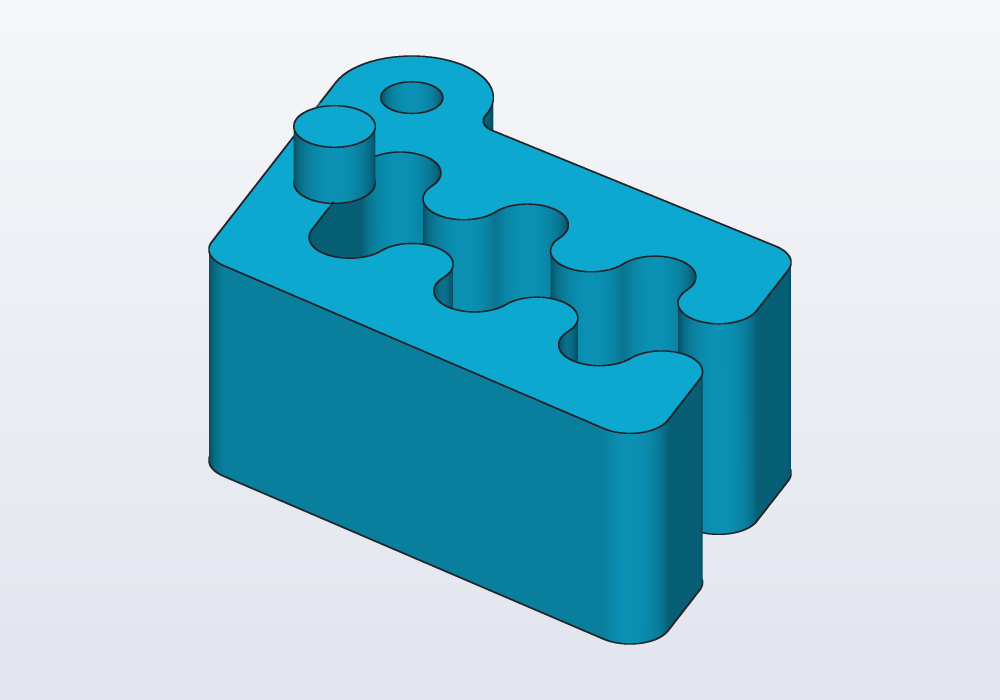
// a peg on Carlo's top, 12 mm left of the face's centre
import std;

@part
Solid pegged()
{
    auto top = carlo().frame(faces.top).at(x: -12.mm);
    return carlo()
        + cylinder(d: 5.mm, h: 4.mm).placeOn(top);
}
placeOn(f, from: faces.bottom) lays a face of the solid against the frame instead: that face's middle on the frame's origin, the two facing each other, X on X; at: vec(…) carries that point of the face instead of its middle. Turn it on the face with f.turn(…).
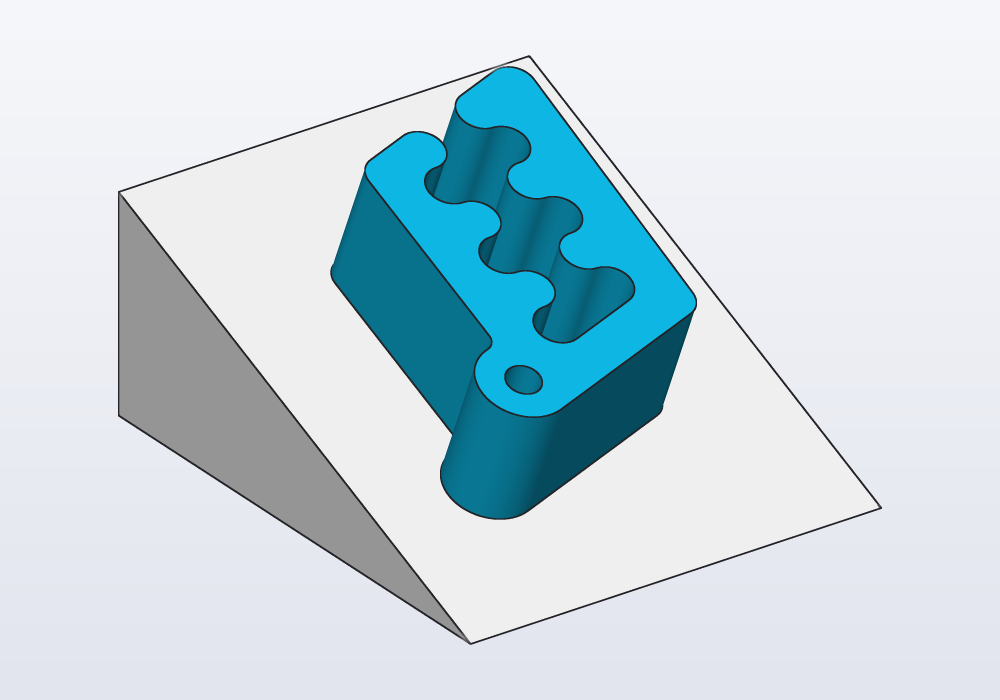
// Carlo laid on the slope of a stand, its bottom face
// against it, turned a quarter on the slope

import std;

@part("White Pop")
Solid stand() => polygon([vec(-30.mm, 0.mm),
        vec(30.mm, 0.mm), vec(-30.mm, 25.mm)])
    .extrude(50.mm, along: X)
    .move(x: -25.mm);

@part
Solid clip()
{
    auto slope = stand()
        .frame(faces.filter(f => f.normal.y > 0.1));
    return carlo().placeOn(slope.turn(90.deg),
        from: faces.bottom);
}
For parts side by side, the bounding boxes are enough:
| Call | Puts a |
|---|---|
a.on(b) |
on top of b (gap: above it) |
a.nextTo(b, X, gap: 10.mm) |
beside b, that way along X (-X, Y, Z… the other sides) |
a.align(b, x: "center", z: "min") |
its box lined up with b's, per axis: "min", "center" or "max" |
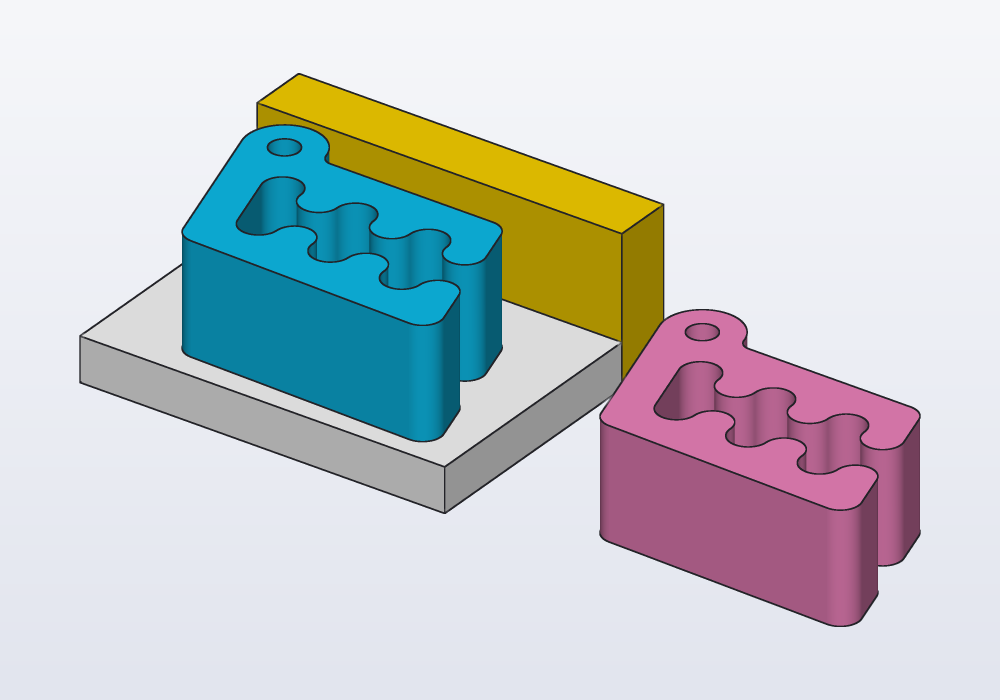
// parts placed by each other, not by coordinates

import std;

Solid base() => box(50, 34, 6);

@part("White Pop")
Solid plate() => base();

// on top of the plate
@part
Solid clip() => carlo().on(base());

// beside the plate along X, 10 mm away
@part("Pink Pop")
Solid spare() => carlo().nextTo(base(), X, gap: 10.mm);

// behind the plate, flush with its left end and bottom
@part("gold")
Solid behind() => box(50, 8, 20)
    .nextTo(base(), Y)
    .align(base(), x: "min", z: "min");
Axes
An axis is a line in space, for turning and for patterns (copies of a part repeated round it):
| Form | The axis |
|---|---|
axis(origin: vec(10, 0, 0), direction: Z) |
through a point, along a direction |
axis(p1, p2) |
through two points |
body.axis(edges.…) |
the line of one straight edge, or the centre and normal of a circular one (a hole's rim) |
frame.axis(X) |
an axis of a frame |
X, Y, Z |
the directions through the origin, where an axis is taken |
// a lever turned 30° about its hole's axis
@part
Solid turned()
{
    auto arm = box(40, 10, 5)
        - cylinder(d: 4.mm, h: 5.mm).move(x: -15.mm);
    auto hole = arm.axis(edges.of(faces.top)
        .filter(e => e.isCircle));
    return arm.rotate(30.deg, axis: hole);
}
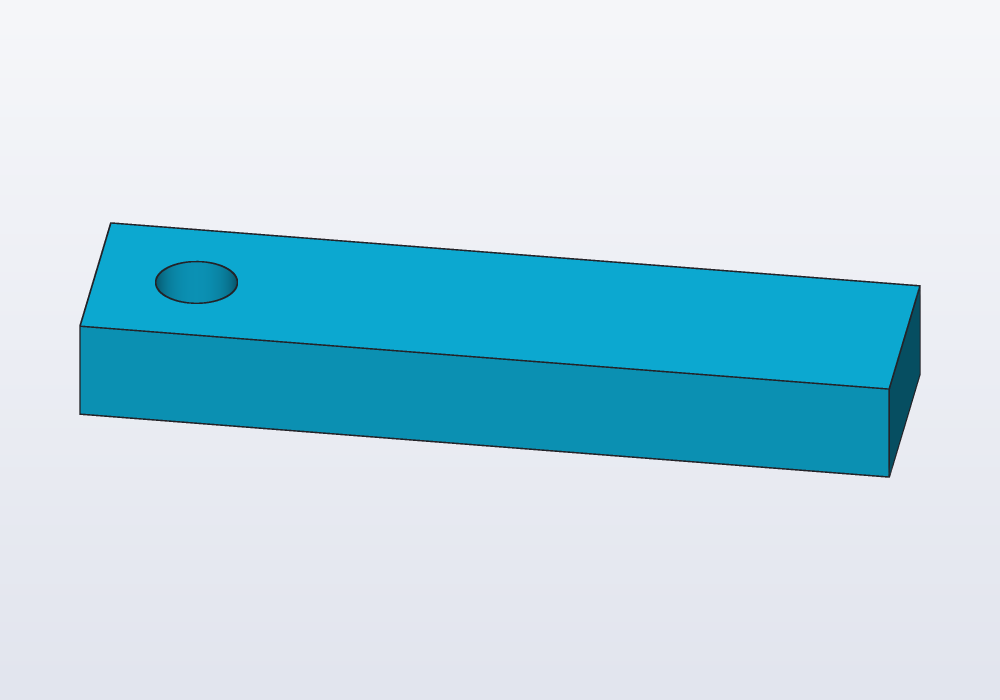
body.axis needs exactly one edge: a hole has two rims, so pick one (edges.of(faces.top)).
Points and axes that travel with a part
A point, an axis, a plane or a frame can be tagged on a part: given a name, and kept with it. Moved, turned, mirrored, cut or joined to others, the part takes it along, and b.point("name"), b.axis("name"), b.plane("name") or b.frame("name") give it back where it now is. No coordinates to work out again after every turn.
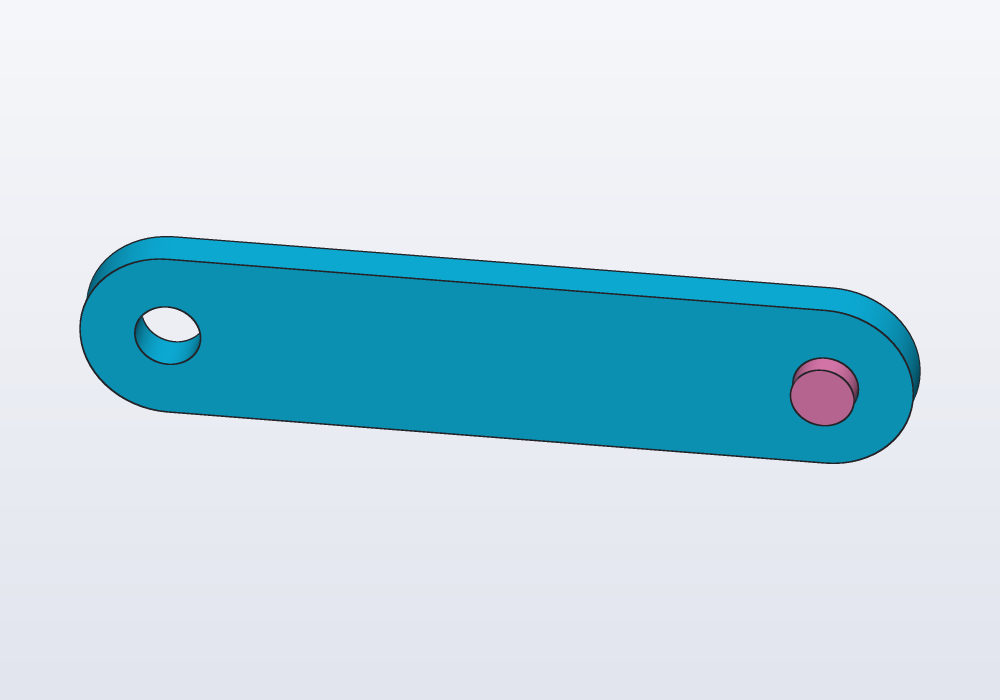
// a link stood up and turned; a pin goes in its hole wherever it went

@part("Sky Pop")
Solid link()
{
    auto s = sketch();
    auto a = s.point(0, 0, fixed: true);
    auto b = s.point(60, 0);
    s.horizontal(a, b);
    s.distance(a, b, 60.mm);
    s.slot(a, b, w: 16.mm);
    s.circle(a, d: 6.mm);

    // the hole the pin goes in: its circle tagged, an axis through it
    s.circle(b, d: 6.mm).addTag("pivot");

    return s.profile
        .extrude(4.mm)
        .rotate(x: 90)
        .rotate(z: 30.deg)
        .move(z: 20.mm);
}

@part("Pink Pop")
Solid pin()
{
    // on the hole's axis, however the link was turned
    return cylinder(d: 5.8.mm, h: 12.mm, center: true)
        .placeOn(link().frame("pivot"));
}
- On a solid:
b.addTag("pin", at: vec(15.mm, 10.mm, 8.mm))tags a point;at:anaxis(…), aplane(…)or a frame tags those. - In a sketch: a point, line, circle or arc tagged (
c.addTag("pivot")) gives the profile, and the solid made from it, a reference of that name: a point where the point is, the axis through a circle's centre across the sketch, the axis along a line. b.frame("pivot")is a frame on whatever was tagged, its Z along the axis (its X asplane(…).frame()has it): whatplaceOnneeds to put another part there.- Cut in pieces (
split,halves, a joint), each piece keeps the references that lie in it or on it; a point on the cut goes with both, and the pieces joined again have it once. Tagging the same name again moves it.
Sketching on a plane
sketch(plane) and sketch(frame) draw on a plane or a frame instead of XY, with its x and y as the table above gives them and s.origin its origin (no edges: those are for sketches on faces, see the guide on sketches). The profile lies where it was drawn, and extrudes across its own plane, along the normal.
// a hook drawn as the Front view shows it, on XZ, made
// 10 mm thick towards the back (XZ faces the front)

Profile side()
{
    auto s = sketch(XZ);
    auto o = s.point(0, 0, fixed: true);
    auto l = s.polyline([o, vec(4, 0), vec(4, 30),
        vec(16, 30), vec(16, 24), vec(20, 24),
        vec(20, 34), vec(0, 34)]);

    // the sides take turns: level, upright
    foreach (i, line; l)
        if (i % 2 == 0)
            s.horizontal(line);
        else
            s.vertical(line);
    s.length(l[0], 4.mm);
    s.length(l[1], 30.mm);
    s.length(l[2], 12.mm);
    s.length(l[3], 6.mm);
    s.length(l[4], 4.mm);
    s.length(l[7], 34.mm);
    return s.profile;
}

@part
Solid hook() => side().extrude(-10.mm);
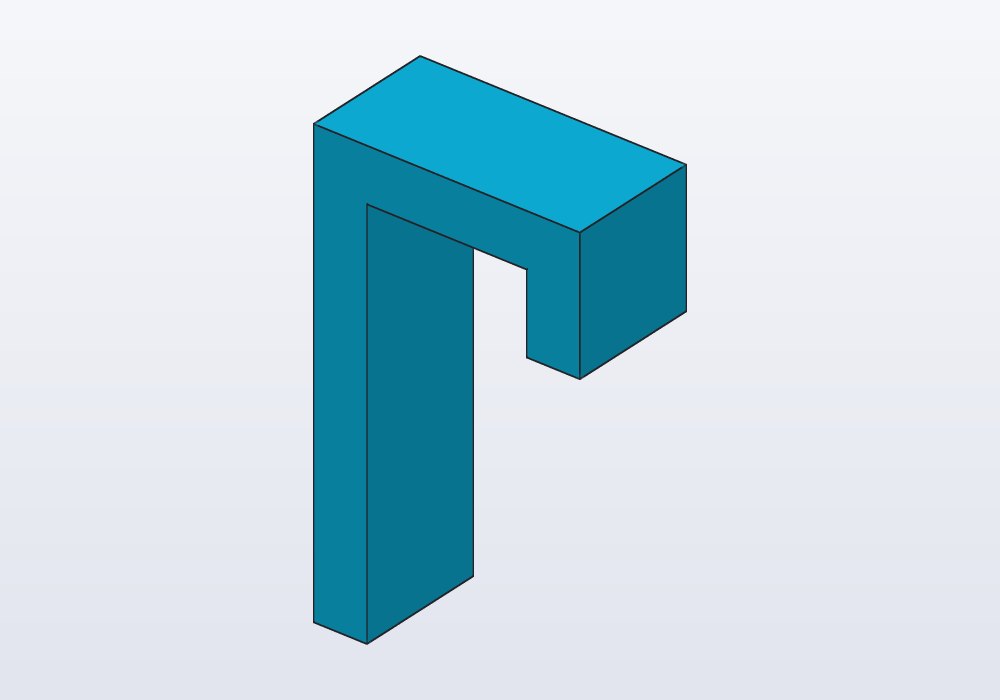
A sketch on XZ.offset(10.mm) lies 10 mm in front of XZ; on body.plane(faces.top, faces.bottom), in the middle of the part.
Common errors
| Message | What to do |
|---|---|
| 'on' needs exactly one face, the selector matched 2 | the selector is ambiguous: faces.farthest(…), faces.from(tool), a filter, or a frame |
| axis needs exactly one edge, the selector matched 4 | narrow it: edges.of(faces.top).filter(e => e.isCircle) |
| at: is a point of the from: face | placeOn(f, at: …) needs from: |
| the two faces are not parallel: no plane lies halfway between them (Plane between faces) | pick two faces that face each other |
In the application
- The planes in the view. The view bar's planes button, or View › Show planes, shows XY, XZ, YZ and the planes the code keeps in variables (named after them, in violet). Click one to pick it; right-click it: Sketch on plane… writes an empty sketch on it into the part the cursor is in (or a new part that extrudes its profile), Offset plane… writes a plane moved 10 mm off it, the distance selected to type over, Hide planes.
- New sketch… (View menu) draws on the face or plane picked; with neither, it shows the planes and waits for a click on one, or on a flat face (Esc gives up).
- Planes from faces. Right-click one flat face: Sketch and planes › Plane on face… writes the plane of the face moved 5 mm off it, in a variable (
plane1…) of the part, the distance selected to type over; with two faces selected, Sketch and planes › Plane between faces writes the midplane; with three vertices selected, Plane through the 3 points. The new plane shows at once, ready to sketch on. - Copy as code. On a face: Frame on face (
.frame(…)) and Plane of face (.plane(…)); on an edge: Axis along edge (.axis(…)). - Placing with the mouse. Right-click a face of a part: Place on… carries a corner or the middle of that face onto a face of another part (or the ground), with a ring to spin it; when both faces are flat it writes
.placeOn(other().frame(faces…), from: faces…), which follows the other part when it changes. Move… and Rotate… write a.move()or.rotate(): drag the X, Y and Z arrows (or the frame under the part, across it) or the knobs of the three rings round it, one after the other; the bar reads how far, the ✓ next to the part writes the line, the X leaves the part as it was. Scale… works the same way: the X, Y or Z handle stretches the part along that axis, the knob at the corner of its box scales it all alike, and the middle of its bottom stays where it is (a part on the ground stays on it); the ✓ writes one.scale(). Rotate around its normal…, Rotate around its axis… (a round face) and Rotate around this edge… turn the part about what is picked. - Section parallel to face (right-click › View) cuts the view with a plane through that face, to look inside.