Parts, export and drawings
What becomes a separate object when a model is exported: @part and its options (colour, see-through, reference parts, names), @parts for the pieces of a cut, colours, the export formats (3MF, STL, zip, STEP, PNG) and what each holds, technical drawings with @drawing, and the Export menu of the application.
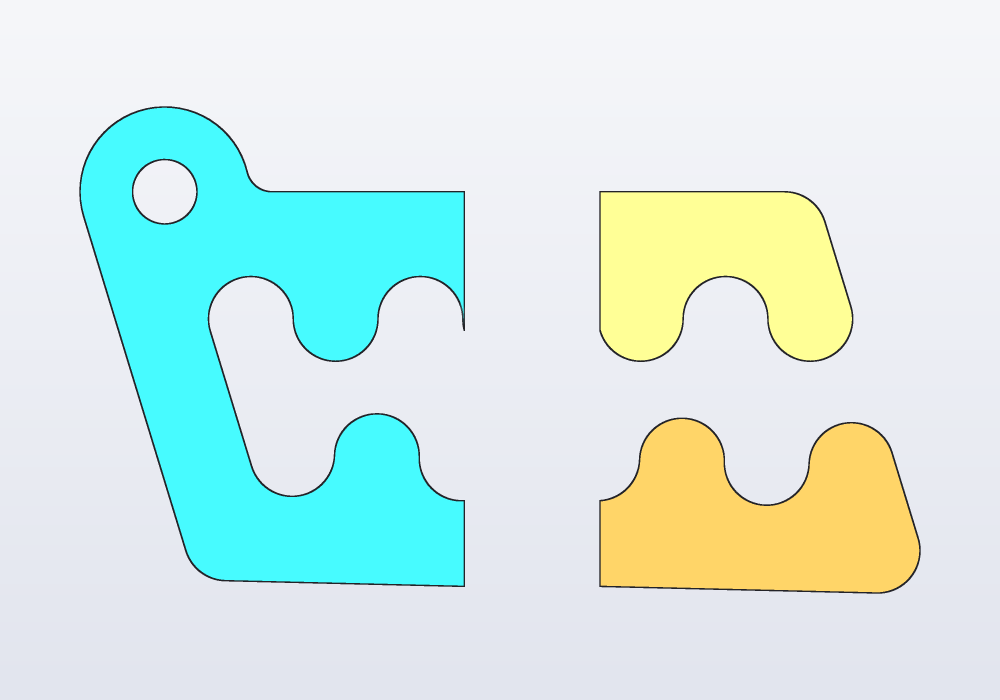
Parts in brief
A part is one object of the model: one body you print, or send to another program. A model shows and exports only what a function marked @part returns. Everything else is a helper.
| You want | Write |
|---|---|
| a body to print or export | @part above Solid name() { … } |
| it in a colour | @part("Pink Pop"), @part("steelblue"), @part("#3b82f6") |
| the thing it fits, shown but not exported | @part("slategray", alpha: 0.35, export: false) |
| another name in the exported files | @part(name: "Tray") |
| one part for each piece of a cut | @parts above a function returning a Solid or Solid[] |
| a drawing with views and dimensions | @drawing above a function returning drawing(…) |
The annotation goes on its own line, above the function. A @part function takes no arguments and returns a Solid: its sizes come from @params (see the guide on parameters). A part is evaluated once per run, even when other parts use it.
A model with several parts
A tray, its lid, and Carlo, the mascot clip, inside as a reference part: an object drawn so that you can see the fit, but never exported. The check at the end makes sure he fits:
import std;

// a box for Carlo: a tray, its lid beside it, and Carlo
// inside as a reference part, to check the fit

@param("Play around Carlo", min: 0.2.mm, max: 2.mm)
immutable play = 0.6.mm;

immutable wall = 2.mm;

// Carlo centred on the origin, on the tray's floor
Solid clip()
{
    auto c = carlo();
    return c.move(x: -c.bbox.center.x, y: -c.bbox.center.y,
        z: wall);
}

@part("Sky Pop", name: "Tray")
Solid tray()
{
    immutable size = clip().bbox.size;
    immutable x = size.x + 2 * play, y = size.y + 2 * play;
    return box(x + 2 * wall, y + 2 * wall, 18.mm)
        - box(x, y, 20.mm).move(z: wall);
}

@part("Pink Pop", name: "Lid")
Solid lid() => box(tray.bbox.size.x, tray.bbox.size.y, wall)
    .nextTo(tray, Y, gap: 10.mm);

@part("slategray", alpha: 0.5, export: false)
Solid carloInside() => clip();

unittest
{
    assert((carloInside & tray).volume == 0.mm ^^ 3,
        "Carlo must not touch the tray");
}
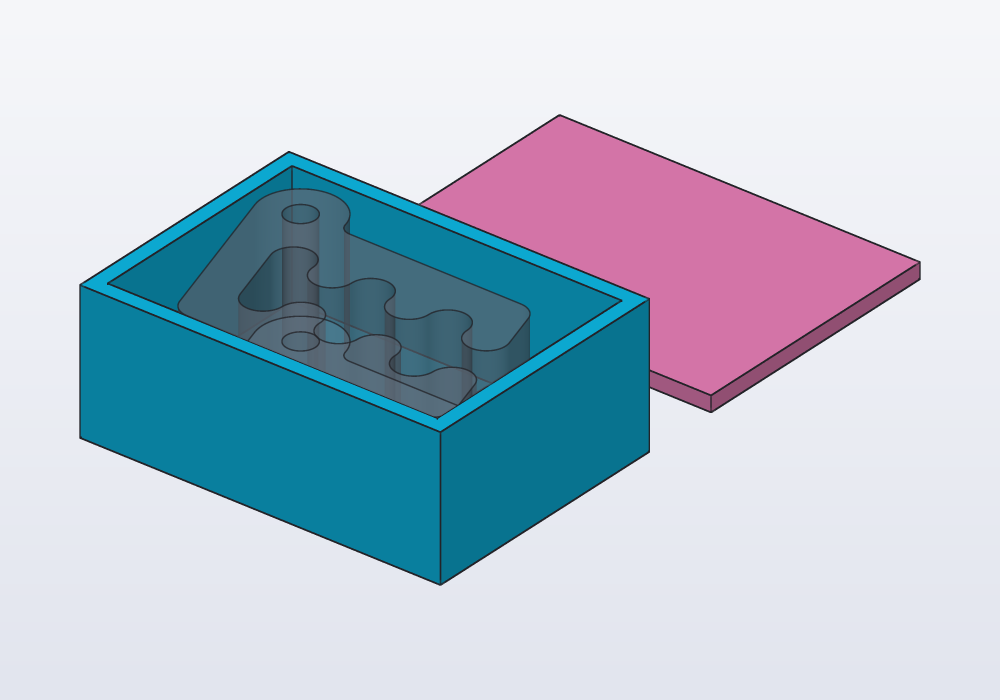
hcad check lists them, and says which are not exported:
part tray         46.7 × 33.9 × 18.0 mm   volume 8070.6 mm³   (exported as "Tray")
part lid          46.7 × 33.9 × 2.0 mm   volume 3166.9 mm³   (exported as "Lid")
part carloInside  41.5 × 28.7 × 15.0 mm   volume 9043.2 mm³   (reference, not exported)
The options of @part
| Option | What it does | Default |
|---|---|---|
| colour (first, unnamed) | the part's colour in the view, in PNGs and in 3MF | "Sky Pop" (#0FC3F2) |
alpha: |
how opaque, 0 to 1: 0.35 is see-through |
1 |
export: |
false makes a reference part: drawn in the view and in PNGs, left out of STL, 3MF and STEP |
true |
name: |
the name in exported files (3MF object, STEP body, STL file in a zip) instead of the function's | the function's name |
Two parts cannot share one exported name. On the command line, --part takes either name.
Reference parts
The shaft a knob fits on, the board a case holds, the phone a stand carries, the mesh being remodelled: model it (or load() it), mark it export: false, and check the fit against it in a unittest, as above, or with distance(a, b). It stays out of every export unless asked for by name (--part carloInside).
Colours
- hackerscad's own colours, alike in brightness under the view's light, are the ones the right-click menu offers:
"Sky Pop","Blue Pop","Cyan Pop","Violet Pop","Pink Pop","Rose Pop","Red Pop","Orange Pop","Yellow Pop","White Pop","Gray Pop". With the space:"Pink Pop"is not the web's"pink". - Any CSS name (
"steelblue","slategray"),"#RRGGBB","#RRGGBBAA"(the last byte the opacity),rgb(255, 128, 0),rgb(255, 128, 0, alpha: 0.5). - Inside a function,
solid.color("orange", alpha: 0.5)colours one solid: a piece of@partscoloured this way keeps its colour.
Three Carlos, each a part in its own colour:
import std;

// three Carlos side by side, a part each, each in its
// own colour: a 3MF keeps the colours

@part("Sky Pop")
Solid sky() => carlo();

@part("Pink Pop")
Solid pink() => carlo().move(y: 35.mm);

@part("Yellow Pop")
Solid yellow() => carlo().move(y: 70.mm);
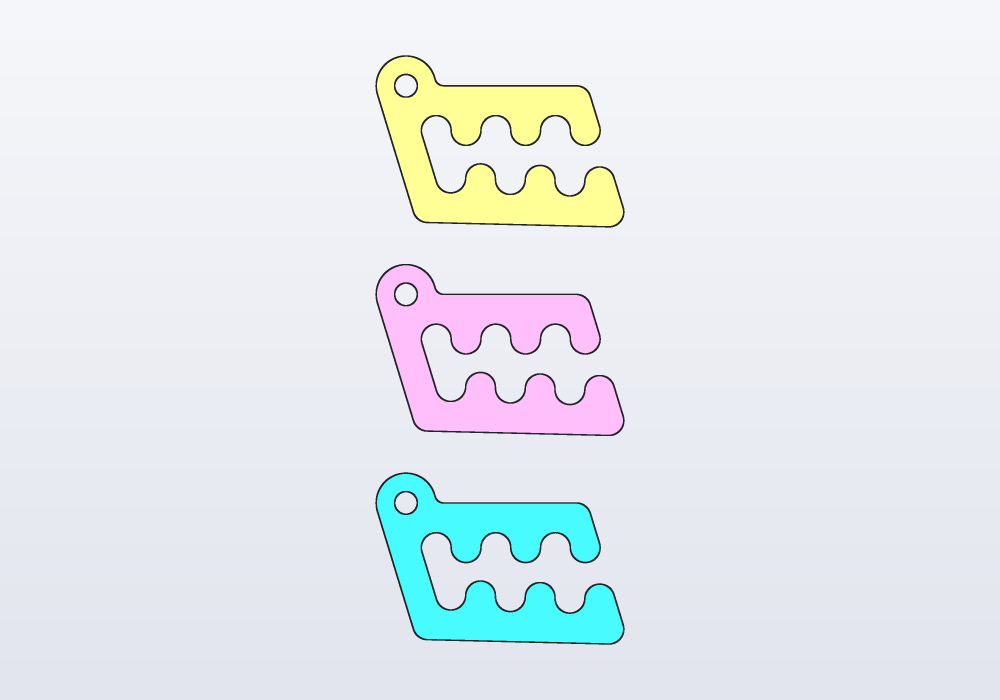
3MF keeps the colours; STL and STEP do not. A slicer (the program that turns a model into the layers a 3D printer prints) shows them, and with --one-object (below) prints them in several filaments.
Several bodies: @parts
A @part that returns several separate bodies is one part, one object in a 3MF. To make a part of each, use @parts: a part for each body of a Solid, or for each element of a Solid[], named after the function with a number (pieces1, pieces2…), in the order of .pieces (along X, then Y, then Z). How many there are comes from the evaluation: a parameter can change it.
import std;

// Carlo cut in two across its teeth, the halves pushed
// apart: each separate body is a part of its own

immutable cut = plane(origin: vec(14.mm, 0.mm, 0.mm),
    normal: X);

@parts(varied: true)
Solid[] pieces() => carlo()
    .split(cut)
    .push(from: cut, by: 4.mm);
@parts takes what @part takes, plus varied: true, which gives the pieces colours that tell them apart (the first in the part's colour). An empty Solid[] makes no part: a part chosen by a parameter, @parts Solid[] lid() => withLid ? [makeLid()] : [];.
Export formats
| Format | What it holds | Choose it for |
|---|---|---|
.3mf |
one object per part, with colours and names | slicers: the default |
.3mf with --one-object |
the parts as pieces of one object | prints in several colours or materials |
.stl |
one part | a slicer or a service that wants STL |
.zip |
one STL per part, Tray.stl, Lid.stl |
STL with several parts |
.step (.stp) |
one named body per part, exact surfaces (round holes stay round, not made of flat triangles) | other CAD programs, machining |
.png |
name.png the iso view (seen from a corner, above), name-views.png iso, front, top and right, name-top.png one view |
a picture, a check |
.pdf, .svg, .dxf |
a @drawing |
a sheet to print, to send, to cut |
hcad render box.hcad -o box.3mf -o box.step -o box-views.png
hcad render box.hcad -o lid.stl --part Lid
hcad render box.hcad -o box.3mf --one-object
hcad render box.hcad -o big.3mf -D play=1.mm
The names given to faces with addTag (Selectors and features) go into the files too: in a STEP file each face is named by its tags (lid;seat), and load("part.step") gives them back as tags, so a part made here, exported and loaded again, keeps its names. A 3MF holds them as named sets of the triangles of those faces (its triangle sets extension), and a part's own tags in the object's metadata; slicers that do not know them simply ignore them. Every file says it was made with hackerscad: 3MF and STEP in their fields for it, STL, zip, PNG, SVG, PDF and DXF in a comment.
STL and 3MF files hold flat triangles, not curves: a round hole becomes a many-sided one. The mesh quality says how far the triangles may stray from the true surface, at most:
| Quality | Largest distance | Choose it for |
|---|---|---|
| draft | 0.1 mm | small files, quick tries |
| normal | 0.02 mm | most prints: the default |
| fine | 0.005 mm | resin printers, small parts, smooth shiny surfaces |
The distance is the same on a large curve and a small one, so a large circle gets more sides than a small one; small holes always get enough sides to stay round. Finer files are larger and slower for the slicer, and below what the printer can draw they change nothing. --quality fine (or a number of mm, --quality 0.01) sets it; STEP files are exact and do not need it.
hcad render knob.hcad -o knob.3mf --quality fine
Every export runs the model's unittests first. -D name=value and --preset name change parameters; --part (repeated for more) picks parts; without it, every part but the reference ones. --printability adds, per part, the overhangs that need supports and the walls too thin to print.
Technical drawings
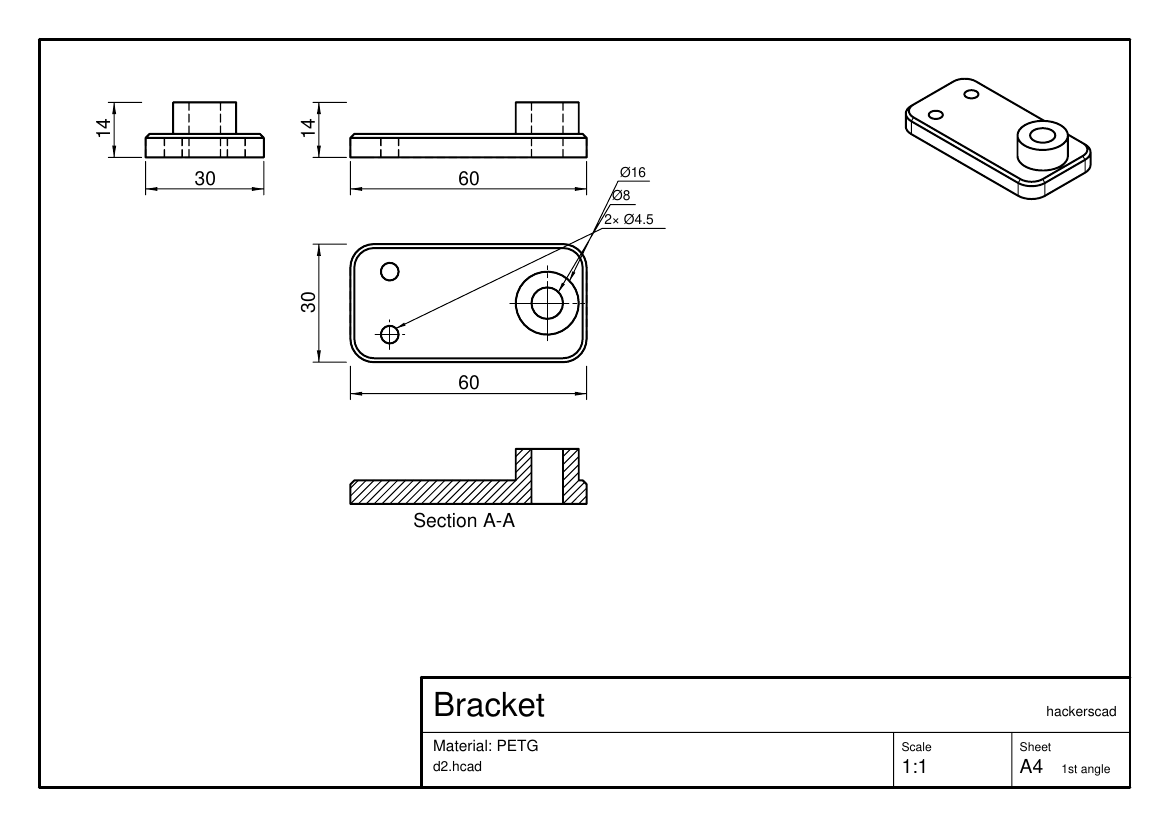
A technical drawing is the part on paper: flat views from the front, the top and the side, each size written beside the edge it measures (a dimension), and sections, the part drawn cut open with the cut faces hatched (striped). A function marked @drawing returns a sheet: drawing(…) filled with views, sections, dimensions and notes.
import std;

// a bracket and its drawing: three views, an iso, and a
// section through the boss

@part("Gray Pop")
Solid bracket()
{
    auto b = rect(60.mm, 30.mm, corner: 6.mm)
        .extrude(6.mm)
        .chamfer(edges.of(faces.top), d: 1.mm);
    b = b.extrude(circle(d: 16.mm),
        on: b.frame(faces.top).at(x: 20.mm), depth: 8.mm);
    b = b.cut(circle(d: 8.mm), on: b.frame(faces.top),
        through: true);
    foreach (y; [-8.mm, 8.mm])
        b -= hole(M4, 6.mm, "clearance")
            .move(x: -20.mm, y: y, z: 6.mm);
    return b;
}

@drawing
Drawing sheet()
{
    auto d = drawing(title: "Bracket", material: "PETG");
    d.standardViews(bracket);
    d.section(bracket, XZ, label: "A");
    return d;
}
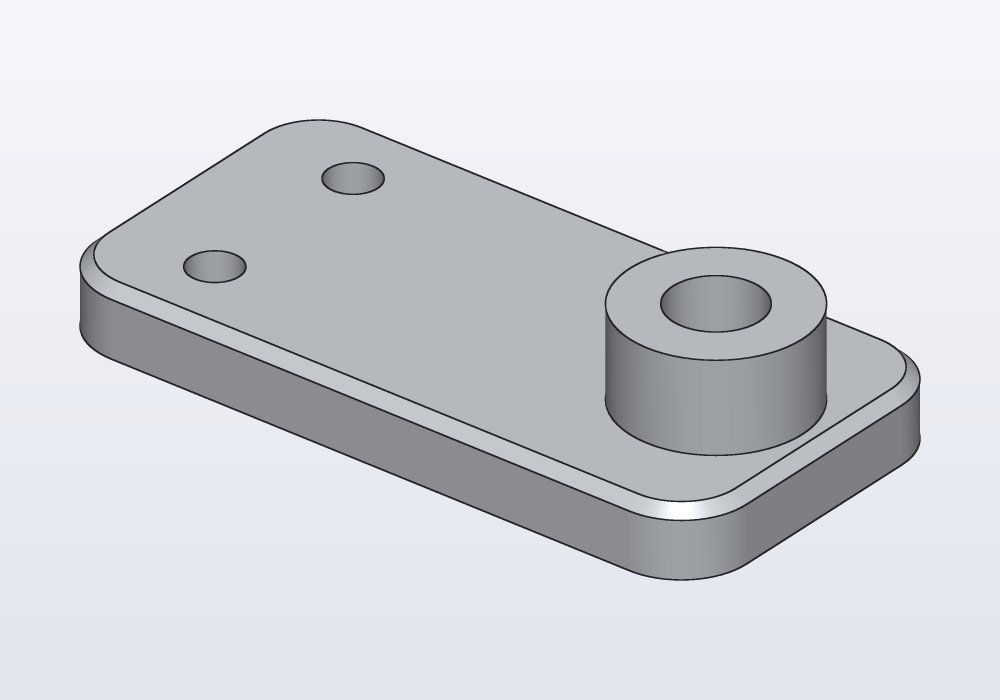
hcad render bracket.hcad -o bracket.pdf
| Call | What it adds | Options and defaults |
|---|---|---|
drawing(…) |
the sheet and its title block | size: "A4", title:, author:, material:, projection: "first" (or "third"), scale: 0 (fit), landscape: true |
d.standardViews(part) |
front, top, side and iso, laid out and scaled, with overall dimensions and hole callouts | iso: true, dimensions: true |
d.view(part, "top") |
one view: "front", "back", "top", "bottom", "right", "left", "iso"; returns it, for dimensions |
at: vec(x, y) in paper mm from the bottom-left, scale: |
d.section(part, plane, label: "A") |
the part cut by the plane, seen from where the normal points, the cut faces hatched | — |
d.dimension(view, from:, to:) |
a dimension between two model points, on a view | offset: 8.mm, text: |
d.note("…", at: vec(x, y)) |
a line of text on the sheet | size: 3.5.mm |
.pdf, .svg and .dxf export the first drawing; --drawing name another one.
Common errors
| Message | What to do |
|---|---|
| a @part function takes no arguments (use @param for its parameters) | move the argument to a @param, or call the function from a part |
| return value of 'a' must be a Solid, but this is a 2D profile: extrude it first | .extrude(h) the profile |
| @part 'halves' returns 2 solids: @parts makes a part of each | write @parts, or join them into one Solid |
| two parts would have the same name in exported files, 'Box': give one a name: of its own | change one name: |
| unknown color 'Pinc Pop' | the message suggests the nearest name |
| 2 parts (Tray, Lid) do not fit one STL: export a .zip, one STL each, or a .3mf, or choose one part | -o box.zip, or --part Lid |
| nothing to export: every @part has export: false | at least one part must be exported, or name the reference part with --part |
| the model has no @drawing function: add one returning drawing(…) | .pdf, .svg and .dxf need a @drawing |
| no @drawing named 'nope' | --drawing takes the function's name |
In the application
- The Export button in the header bar opens a menu of the formats: 3MF (one object per part, with colours), 3MF, one object (the parts as its pieces, for prints in several colours), STL (a zip of one STL per part when there are more), STEP, PNG (a picture of the parts). Ctrl+E (⌘E on macOS) repeats the last format. The same menu is under ☰ › Export.
- Export › Mesh quality chooses Draft, Normal or Fine for STL and 3MF files, or Custom… a distance in mm; the choice is kept for the next times. After an export, the line at the bottom says how many triangles the file holds and at which quality.
- ☰ › Check Interference looks at every two parts and lists those that overlap, with the volume they share, shown in red over the parts (Esc goes back to the model): a lid that sits too low, a pin wider than its hole. Parts that only touch are not counted.
- Right-click a part › Export name › 3MF…, STL…, STEP… exports that part alone.
- Right-click a part › Colour writes the colour into the code (the Pop colours, or Other… for any); Hide name, Show only name, Show all parts change only what the view shows.
- Exports use the parameters and preset set in the side panel, and run the
unittests first. - A file dragged onto the window: a
.hcadmodel opens in its place, a mesh or CAD file (STL, OBJ, PLY, 3MF, glTF, STEP, SVG, DXF) becomes a new model next to it that loads it; the window asks first, and offers to save the changes not saved yet. - The same menu's last section is the model's
@drawing: Show the drawing opens it in a window of its own, as it prints (a list at the top when there are several; it follows the code as you change it), with PDF…, SVG… and DXF… to export it; Drawing as PDF / SVG / DXF export it at once.