← Install · Contents · The first block →
2. The window
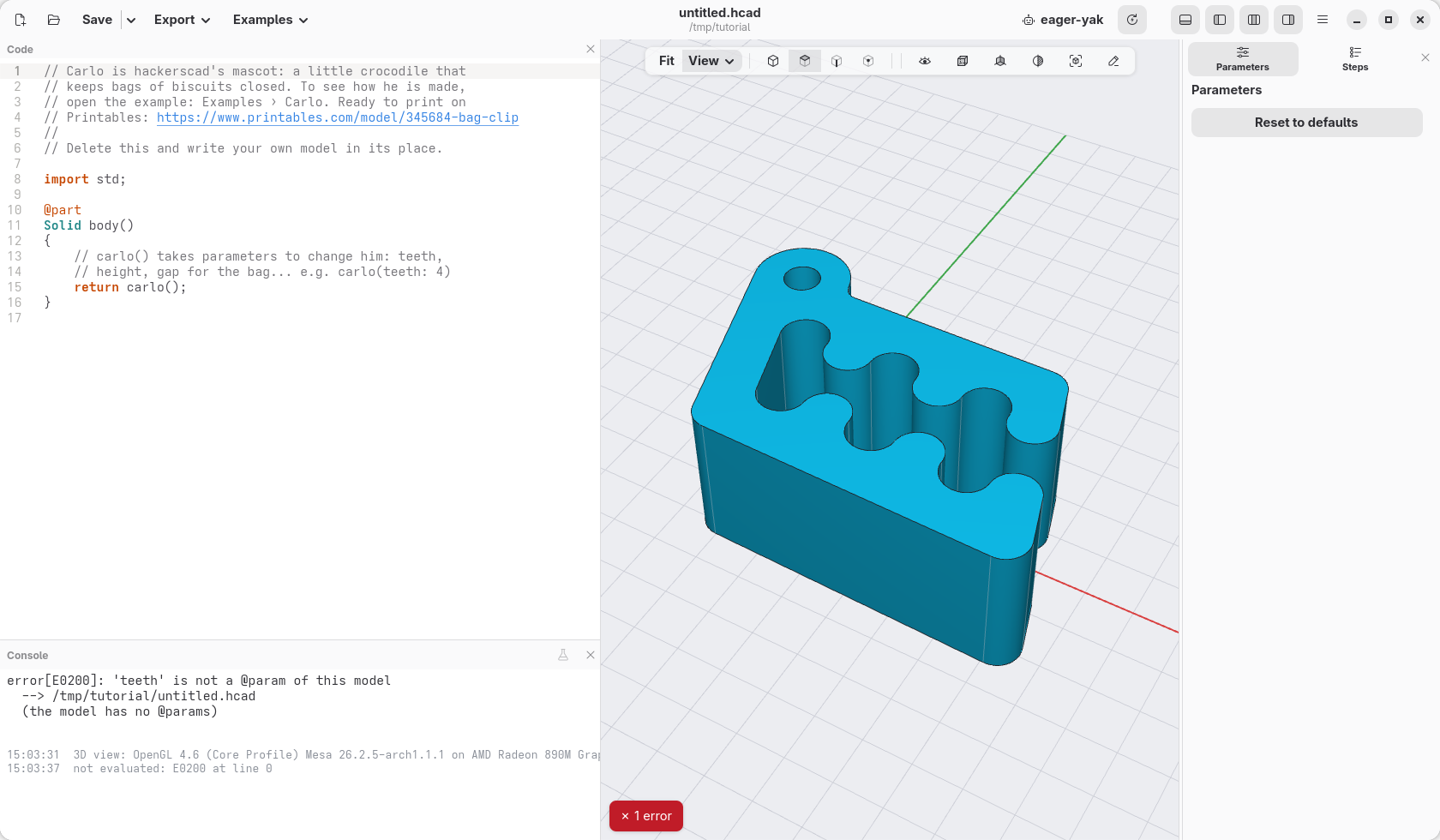
Before building anything, a short tour of the window. It is still open on Carlo, the bag clip it starts on (the same as Examples › Carlo): we use him to try things.
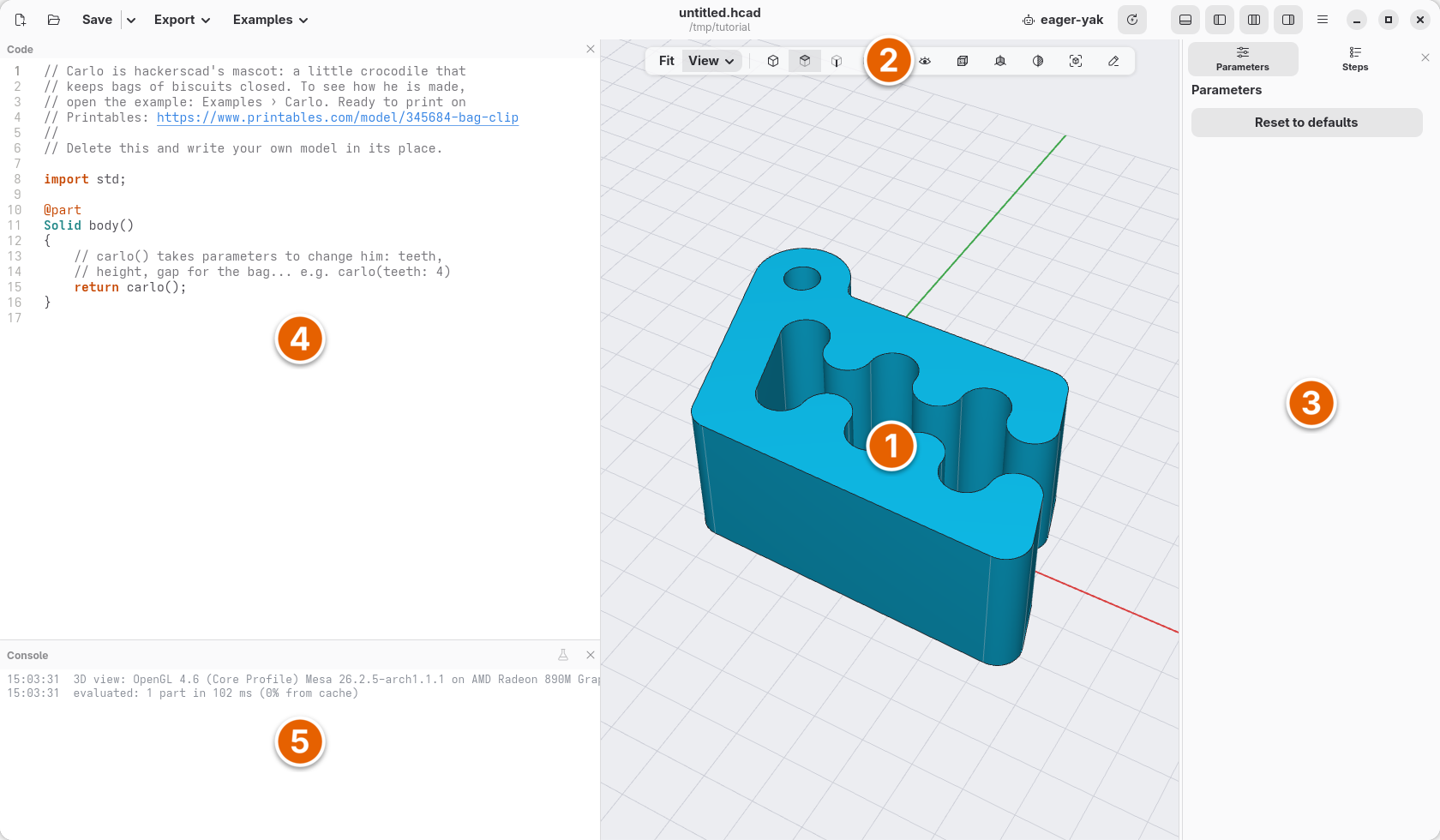
- The view. The model as the code describes it. Clicking a face picks it and highlights the line of code that made it; right-clicking opens what you can do there: move, turn and place the part, cut it in two, colour it, sketch on a face. Each of these writes a line into the code, so the model stays a text you can read. The chapters that need them show them one at a time, and the guides explain them all.
- The view bar. Fit and the View menu (Iso, Top, Front, Right, and the model's sketches); four buttons for what a click picks: whole parts, faces, edges or vertices; then the eye (hide parts, the grid, the axes), the planes, the cube (how parts are drawn, below), the section (cut the model to look inside), the magnifying glass (what a line of code makes) and Annotate (draw arrows and notes on the view, to show something to someone or to an AI agent, chapter 11).
- Parameters and Steps. Parameters has the sizes the model lets you change without touching the code; Steps shows how it is built, one step at a time.
- The code. A model is a short text in a small language. You will rarely start from an empty page: the mouse writes most of it, and the few lines to type are given here, ready to copy. Every change shows in the view as you type.
- The console. What the model writes, its checks, and hackerscad's own messages (evaluated, saved, exported).
At the top left: new, open, save and export (Ctrl+N, Ctrl+O, Ctrl+S, Ctrl+E; on macOS, Cmd in place of Ctrl, here and in the rest of this tutorial), and Examples, ready models to try. At the top right, buttons show or hide the console, the code, the view and the parameters. The menu (☰) has the rest, among it the cheatsheet (F1: everything the language has, one line each, with recipes) and the light or dark style.
Change a size
In Parameters, find Teeth per jaw and click +: the clip gets one more tooth on each jaw. The code does not change: parameters are values you try on the model. A value you changed is marked with a dot; the ↺ at the end of its line, or Reset to defaults, brings back the one in the code.
How the parts are drawn
The cube in the view bar opens a small menu:
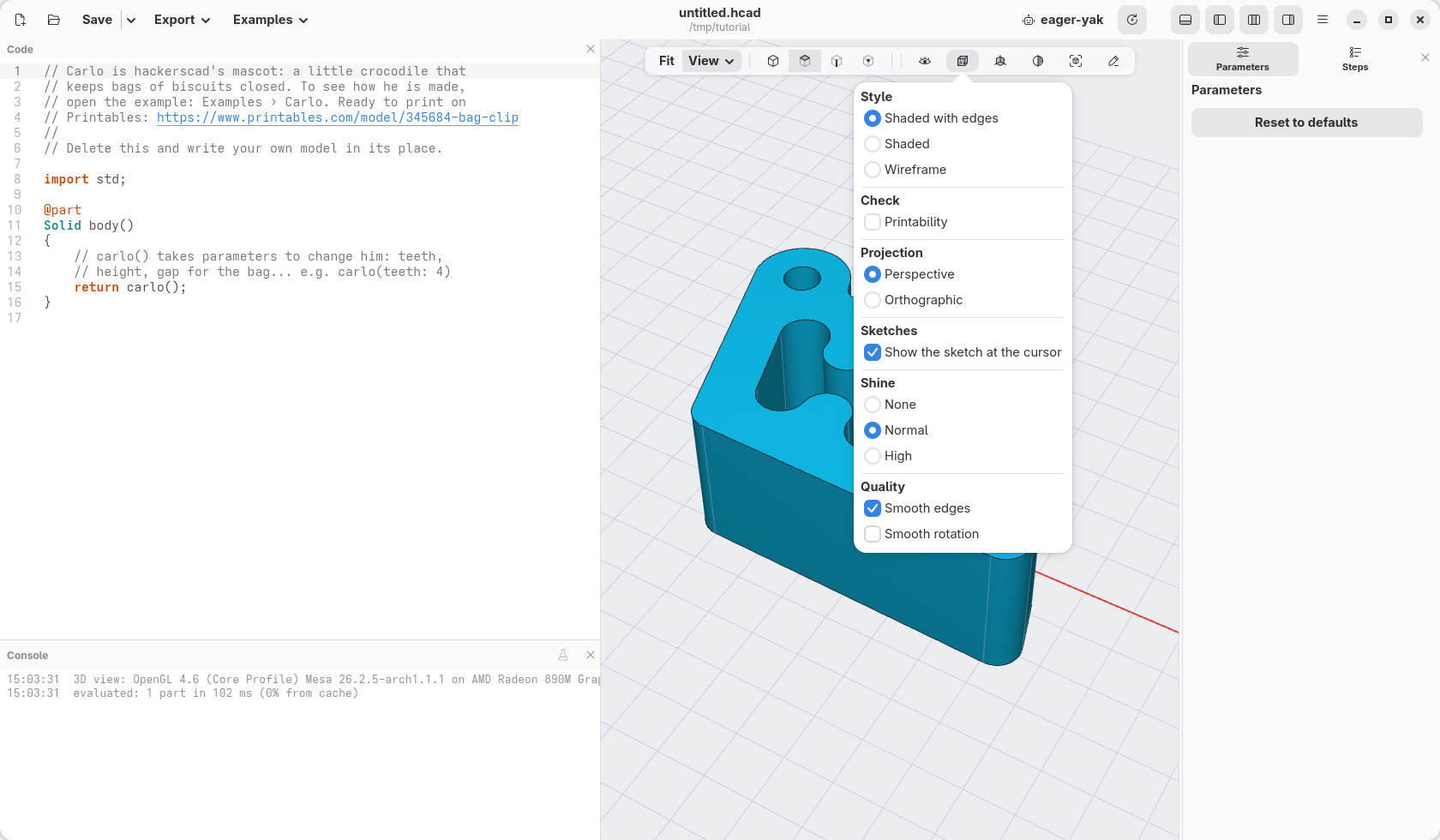
- Shaded with edges, Shaded or Wireframe (only the edges, to see inside).
- Printability, for 3D printing: overhangs that need supports striped red, walls too thin to print hatched violet.
- Perspective or Orthographic (sizes that do not shrink with the distance: the side views become true drawings).
- Shine and, under Quality, smooth edges and smooth rotation: turn them down if the view is slow. The choices are kept. Shine › Zebra draws black and white stripes on the surfaces, as a car's paint reflects a row of lights: where faces meet smoothly the stripes run on, where the curve breaks they jump.
Keys worth knowing
- The view: right drag (or Shift and the left button) turns it, middle drag (or Ctrl and the left button) moves it, the wheel zooms, F6 frames the model. A click picks what is under the pointer and adds it to what is picked, a left drag picks with a box (from left to right what is wholly inside it, from right to left what it touches); Esc empties the pick.
- The code: the keys of a code editor: Ctrl+F to find (Ctrl+H to replace), Ctrl+L to go to a line, Ctrl+/ to comment lines out, Ctrl+D to duplicate a line, Ctrl+Shift+K to delete it, Alt+Up and Alt+Down to move it, Ctrl+Z to undo. Ctrl+click on a line shows what it makes.
- The checks: F5 runs the model's
unittestchecks.
Check
The clip has four teeth per jaw.